It was late one evening when I finally realized my long-standing habit of relying on a ring light for virtual meetings was doing more harm than good. My face, usually well-lit, looked tired and washed out, making me wonder if I was the only one battling this issue. Then, during a quick glance at my screen, I caught the glare bouncing off my glasses, amplifying the tired effect and casting strange shadows. That was my lightbulb moment—what I needed wasn’t just any workspace light but a smarter, more effective solution. Today, I want to share how switching to an LED monitor bar transformed my video calls and why it might do the same for you. Are you tired of struggling with uneven lighting or glare that makes you appear exhausted? If so, you’re not alone, and fortunately, there’s a better way.
Say Goodbye to Ring Light Woes with a Monitor Bar
Will a Monitor Bar Really Make a Difference in Your Calls?
From my early missteps—like setting my ring light too close or choosing the wrong brightness—the mistake I made was thinking that more light was always better. It turned out that excess glare and poor positioning can make your environment look worse, not better. Later, I discovered that a high-quality LED monitor bar, designed to fit snugly atop your screen, offers precise, adjustable illumination that reduces eye strain and glare. This shift not only brightened my face naturally but also improved the overall contrast and clarity of my video, making me look more professional and less tired. According to lighting expert [Tech Desk’s](https://lighting.techdeskessentials.com/led-lamp-innovations-brighten-your-desk-and-boost-productivity) research, well-placed, direct light sources are proven to enhance facial features and reduce eye fatigue, especially during long calls. The true benefit lies in its ability to focus light exactly where you need it—eliminating scattered glare and creating a balanced, flattering glow. Have you experienced that awkward moment when your ring light glare hits your glasses just right, leaving everyone distracted? If yes, then a monitor bar could be your game-changer. Let’s explore how this sleek device can elevate your workspace and make every call feel like a professional broadcast.
Position Your Monitor Bar Strategically
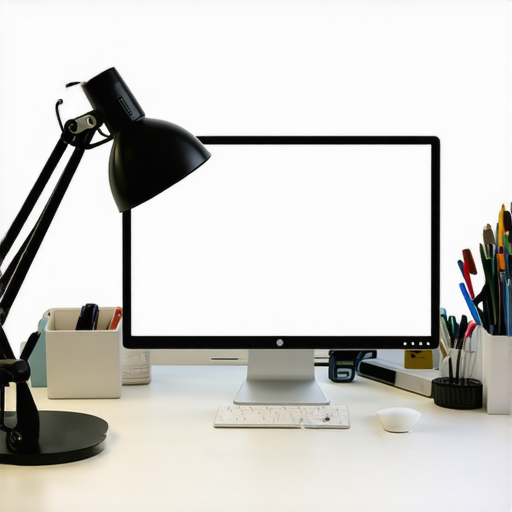
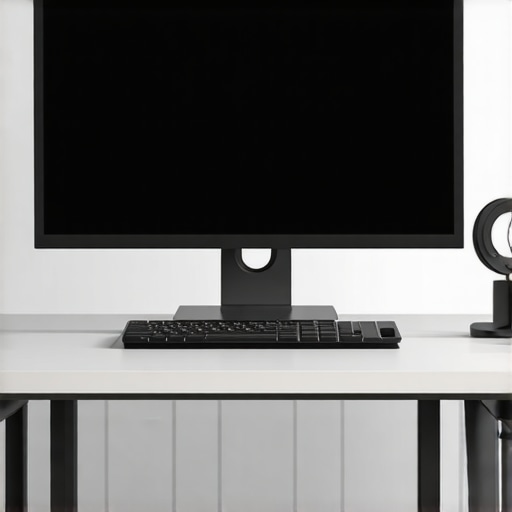
Start by placing the LED monitor bar directly on top of your screen, ensuring it aligns with the upper bezel. Use a level to verify it’s straight, preventing uneven light distribution. During my first attempt, I placed it too close to the edge, causing glare on my glasses. After repositioning it a few centimeters inward, the light became more balanced and glare-free.
Adjust Brightness and Color Temperature
Set the monitor bar’s brightness to match your ambient lighting—usually around 50-70% works well. Choose a warm white (around 2700K to 3000K) for a cozy feel or a neutral white (3500K to 4100K) for clarity. I found that increasing brightness made my face appear more vibrant without washing out my features, especially during evening calls. For detailed guidance, consult this guide on LED color temperatures.
Control the Light Direction
Most monitor bars have adjustable modules or diffusers. Aim the light slightly downward, avoiding direct angles that could cause glare on your glasses or screen reflection. During a video session, I tilted mine just enough to illuminate my face evenly without creating harsh shadows.
Create the Perfect Ambient Balance
Complement your monitor bar with indirect light sources, like bias lights behind your monitor, for a balanced environment. Turn off harsh overhead lights that cause contrast issues. I installed a bias light strip behind my monitor, which reduced eye strain and highlighted the content without overpowering the main light. For tips on choosing the right bias lighting setup, see this article.
Experiment and Fine-Tune
Adjust settings during different times of the day to find your ideal setup. I initially set my monitor bar to maximum brightness, but found reducing it slightly gave a softer, more natural look. Don’t hesitate to cycle through different color temperatures and brightness levels until the lighting feels comfortable and flattering. Remember, a well-placed light not only enhances your appearance but also boosts your productivity by reducing eye fatigue.
Many assume that simply adding a bias light or adjusting their desk lamp will instantly improve their workspace and visual comfort, but the reality is more nuanced. A prevalent misconception is that brighter or more intense lighting always yields better results. In truth, over-illuminating your environment can cause glare, eye strain, and even negatively impact mood and productivity. For example, LED lamps with high lumen outputs might seem ideal, but without proper positioning and color temperature adjustments, they can produce harsh shadows or washed-out appearances that diminish ergonomic benefits.
Are You Missing the Subtle Details That Maximize Lighting Efficiency?
One significant oversight is neglecting the importance of color rendering index (CRI). High-CRI lighting ensures that colors appear natural and vibrant, contributing to reduced eye fatigue and better focus, especially during long work hours. Experts emphasize that the quality of light often outweighs quantity, a point supported by a study from the Lighting Research Center, which found that poorly chosen lighting spectra can impair visual performance and circadian rhythms. Relying solely on adjustable brightness levels or color temperature controls without considering spectral quality can limit the potential benefits of your setup. Additionally, many users underestimate the importance of uniformity. Uneven lighting, with hotspots and shadows, can cause discomfort and detract from a professional appearance during video calls. Uniformity can be improved by combining multiple lighting sources—such as bias lights behind the monitor with strategic desk lamps—and adjusting angles meticulously.
Another common trap is misplacing or ignoring the placement of bias lighting, leading to unintended reflections or glare. For instance, placing a light too close or at an incorrect angle can cause glare on your glasses or screen, defeating the purpose altogether. To avoid this, aim to position lights slightly behind or above your monitor, directing the light toward the wall or ceiling to create a soft, indirect glow. This technique minimizes glare while enhancing perceived contrast and reducing eye strain. For more insights into optimal placement, see this detailed guide.
For serious users aiming for a professional-grade setup, investing in adjustable, high-CRI LED fixtures with flicker-free operation is crucial. Flickering lights, often unnoticed, can cause headaches and visual discomfort over time. Ensuring your lights meet flicker-free standards is a subtle edge many overlook, yet it improves long-term comfort and health. If you want to ensure your lighting choices support your productivity and eye health, consider consulting reputable sources or expert reviews—like those from the Lighting Research Center—to assess spectral qualities and flicker levels.
Have you ever fallen into this trap? Let me know in the comments. Remember, optimizing workspace lighting isn’t just about brightness—it’s about mastering the subtle details that make a significant difference in comfort, efficiency, and appearance.Once you’ve set up your ideal workspace lighting, maintaining it becomes essential to ensure consistent results. The first step is choosing high-quality equipment. I personally rely on LED fixtures with a high color rendering index (CRI) of 90 or above, as they produce vibrant, natural colors and reduce eye fatigue during long work sessions. Regular cleaning of your light sources, such as wiping dust off diffusers and lenses, prevents diminished brightness and color accuracy over time. For example, a lightly dusted diffuser can reduce light output by up to 20%, significantly impacting your workspace’s ambiance. To streamline maintenance, I recommend investing in a microfiber cloth and a gentle cleaning solution suitable for LED surfaces—these are typically available at electronics stores or online. Furthermore, software tools like [LiteXpert](https://lighting.techdeskessentials.com/contact-us) allow you to fine-tune your lighting setup remotely, ensuring your bias lights and desk lamps stay calibrated across different times of the day. Using programmable routines or smart controls, you can automatically adjust brightness and color temperature, adapting to your circadian rhythms or seasonal changes. I find that setting reminders to review your lighting parameters monthly helps catch any drifts or issues early, especially after moving furniture or renovation. Prediction-wise, as smart home integrations become more widespread, expect lighting maintenance to become more automated, with sensors detecting lamp aging and signaling replacements before performance drops. How do I maintain my workspace lighting over time? I set a quarterly schedule to evaluate and recalibrate my lights, updating firmware when available and replacing any components showing signs of wear, like flickering or inconsistent color output. This proactive approach ensures my environment remains welcoming and visually comfortable. For more precise guidance, consult detailed articles on [LED lamp innovations](https://lighting.techdeskessentials.com/led-lamp-innovations-brighten-your-desk-and-boost-productivity), which discuss maintenance best practices. Don’t hesitate to experiment with advanced settings on your smart fixtures—try programming your lights to gradually shift color temperature in the evening, promoting relaxation and better sleep. Proper upkeep and smart controls can extend your lighting system’s lifespan, maintain its effectiveness, and continuously enhance your workspace experience.
The Hidden Pitfalls That Could Be Sabotaging Your Workspace Light
One of the most overlooked lessons I learned is that good lighting isn’t just about adding more light but making every lumen count. I used to believe that brighter meant better, but I discovered that high lumen outputs, when misapplied, can create glare and discomfort. High-quality, high-CRI LED fixtures, positioned thoughtfully, transformed my workspace by enhancing natural color perception and reducing eye fatigue. Recognizing the importance of spectral quality was a game-changer; I now focus on lights that render true colors and adapt to my needs, rather than just brightness levels. This insight has helped me create a balanced, professional environment that looks and feels right at any time of day.
My Toolkit for Optimal Workspace Illumination
Choosing the right tools made all the difference. I trust reputable sources like this guide on LED innovations for understanding spectral qualities and flicker-free fixtures. The contact page connects me with experts who help tailor lighting setups to specific needs. Investing in high-CRI, flicker-free LED lamps ensures my environment remains vibrant and comfortable, especially for long work sessions. Additionally, I use smart control apps to remotely fine-tune my lighting, creating an atmosphere that boosts focus and relaxation as needed. These tools are the backbone of my ongoing workspace maintenance and improvement.
Light Your Path With Confidence and Care
This journey into refined workspace lighting has shown me that small, deliberate adjustments yield major benefits. From repositioning my monitor bar to choosing lights that match my circadian rhythm, I’ve seen firsthand how thoughtful lighting enhances productivity and well-being. If you’re ready to elevate your workspace, start by experimenting with different color temperatures and brightness settings—remember, it’s about what feels natural and promotes focus. A well-lit environment isn’t just an aesthetic choice; it’s a health investment that pays dividends over time. So, take the first step today—your productivity and comfort are worth it, and the next breakthrough could be just a light adjustment away. How will you begin refining your workspace lighting today? Let me know below.

About the Author
Ricardo Vargas
Director of Operations and Product Development
Ricardo Vargas is a seasoned professional in the lighting industry, currently serving as a Director of Operations and Product Development
LinkedIn Profile